
AI Video Editor - VivaCut
VivaCut professional video editorVideo Players & Editors
4.315.05K Reviews
- Version
- 4.5.0
- Installs
- 100.00M
- Age Rating
- Everyone
Screenshots
Our Review of AI Video Editor - VivaCut
 Analysis by Appyee
I usually start a phone edit with a small, practical goal: turn a handful of clips into something I can share without spending the whole evening at a desk. AI Video Editor - VivaCut is aimed at that kind of creator, but its layered timeline also leaves room to build something more considered. In my experience, its appeal is the mix of quick effects and hands-on editing rather than a promise that every video will look polished automatically.
Who will get the most from it
VivaCut is a video editor in the Video Players & Editors category, developed by VivaCut professional video editor. It is free to install, rated for Everyone, and has an average rating of 4.3 from around 1.4 million ratings. More than 100 million installs suggest it has found a broad audience, though popularity alone can’t tell you whether its workflow suits you.
I’d consider it if you make short social clips, travel recaps, family videos, or edits that combine footage with text and music. The layered approach is useful when you want more control than a basic trim-and-filter app provides, but don’t want to move immediately to desktop software. If you only need to remove the beginning and end of a clip, your phone’s built-in editor may be quicker and less distracting.
The app is free, with in-app purchases ranging from $0.99 to $79.99 per item. I’d begin with a small test project before paying for anything: check whether the tools you actually want are available to you, then decide whether the added options justify the cost. The current version is 4.4.5, and the stated minimum operating system is Android 7.0.
From camera roll to first cut
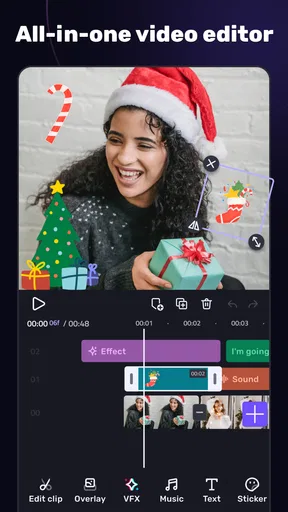
Launching the AI Video Editor - VivaCut is like opening up a treasure chest of creative tools. The interface is sleek and modern, which is a breath of fresh air compared to some of the clunky editors out there. It’s intuitive enough that even if you’re a newbie in the editing world, you won’t feel overwhelmed.
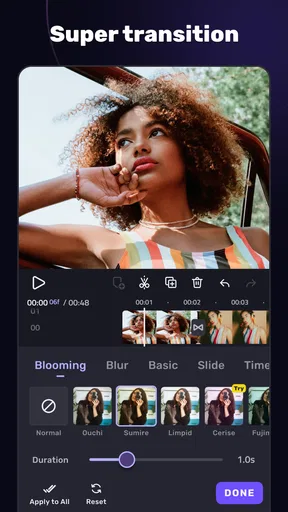
Everything is neatly categorized. You’ve got your basic trimming and cutting tools, transitions, effects, and then the pièce de résistance—AI-powered features. The app clearly values user experience, making it easy to navigate and find exactly what you need without any hassle.
For a more reliable first session, I’d choose the clips before opening the editor and decide what the finished piece needs to do: tell a short story, show a place, or capture a moment. That simple choice helps keep a timeline from becoming a collection of effects without a clear point. I also find it useful to make a rough cut first, removing pauses and accidental footage before adding transitions or text.
Building an edit in layers
I find a layered edit works best when I decide what each element needs to contribute before I start adding it. Keeping titles, supporting visuals, and sound purposeful makes revisions easier and helps the finished clip stay clear rather than crowded. It also gives me a useful way to judge whether an effect is improving the story or simply adding another adjustment to manage.
Features That Stand Out
Alright, let’s talk features because this app is packed with them! One of the most impressive is the AI-driven effects. You can apply these to your videos with just a tap, and they adjust automatically to fit the mood and style you’re going for. It’s like having your own personal video editor right in your pocket.
The multi-layer timeline is another highlight. It allows you to stack videos, images, and audio tracks on top of each other, giving you that professional edge. Want to add some cool text effects or a voiceover? Easy peasy. VivaCut handles it all seamlessly.
"The app clearly values user experience, making it easy to navigate and find exactly what you need without any hassle."
Layers are most useful when each one has a job. For a simple recap, I might keep the main footage on the base track, use a second visual layer for a title or an image, and reserve audio layers for music and spoken narration. That separation makes later adjustments easier: if the music feels too prominent, I can work on the soundtrack without rebuilding the visual sequence.
There is a trade-off, though. Layering gives you options, but every added element creates another thing to check before export. I’d keep a short edit deliberately spare, then add only what improves clarity or mood. A transition between every clip can make a casual montage feel busy, while a few well-placed changes give the footage room to breathe.
Using AI without handing over the edit
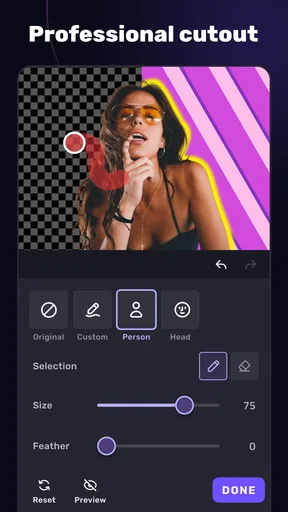
Now, the AI features are where the magic happens. The app can automatically recognize faces and objects, making it super simple to apply effects where they’re needed most. For instance, it can enhance colors or blur backgrounds to create that cinematic depth-of-field look. It’s pretty wild how much it can do with just a few taps.
There’s also a nifty feature that automatically syncs your video to music beats. So, if you’re editing that epic travel video, you can make sure every cut hits right on the beat, making your footage look like it was professionally edited.
I’d treat these automated touches as a starting point, not a substitute for choosing the right moments. Beat syncing can help a fast montage feel connected, but it won’t decide which shot matters most or whether a cut makes sense to someone who wasn’t there. A practical workflow is to select the strongest clips first, let the timing guide a rough rhythm, and then review each cut with the sound on.
For face or object effects, restraint matters too. Automatic recognition can save fiddly work, especially when an effect needs to follow a subject, but I’d preview the result across the full clip. A missed edge or an effect that draws attention away from the person can be more noticeable than leaving the footage untouched. When the source video is shaky, dark, or crowded, a quick manual check is particularly worthwhile.
Finishing, exporting, and passing the video along
Using VivaCut on my phone was a breeze. The app runs smoothly and handles high-resolution videos like a champ. No annoying lags or crashes here, which is a huge plus. I was able to export my videos in high quality without any hiccups, and the rendering time was surprisingly fast.
However, it’s worth noting that some of the more advanced features are locked behind a subscription. While the free version is quite capable, if you’re serious about video editing, you might find it worth investing in the premium version to unlock everything VivaCut has to offer.
Before sharing, I’d watch the exported file from beginning to end rather than relying only on the editing preview. Check that the opening doesn’t linger, text stays readable, the music doesn’t overpower speech, and the final moment feels intentional. This is also the point to make sure the video works outside the editor: a friend receiving it should be able to understand the sequence without needing an explanation.
Compared with a basic editor built into a phone, VivaCut gives more room for stacked visuals, effects, and audio. That control is valuable when you’re shaping a mini-story, but it also means more decisions and a busier interface than a one-tap trimming tool. Compared with desktop editing, the phone-first workflow is convenient for quick sharing, while a larger screen and dedicated keyboard are usually better for long projects that need precise, repeated adjustments.
A realistic use for me would be making a short weekend outing recap: choose a few clips, cut out the waiting and camera movement, add a brief title, arrange music beneath the footage, and use beat timing only where it helps. I’d export, watch the result once, then send it to family. That’s where VivaCut makes sense: a compact project with enough personality to feel edited, without turning a casual memory into a major production.
Where the workflow can snag
The biggest friction is not necessarily the editing itself; it’s managing ambition. A multi-layer timeline invites experimentation, and it’s easy to spend longer testing effects than improving the story. I’d set a rough limit for the edit and save the more elaborate treatments for clips that genuinely benefit from them. If the project keeps growing, that may be a sign to simplify rather than add another layer.
Phone editing also has practical limits. A small screen can make fine timeline adjustments less comfortable, particularly when several elements overlap. If you’re assembling a long piece, carefully matching many cuts, or revising the same sequence repeatedly, a desktop editor may be the better choice. VivaCut is easier to recommend for short and medium-sized personal edits than for work where detailed control and a large preview are central.
Another question is whether the free experience will be enough. Since some advanced options require payment, I wouldn’t build a whole workflow around a premium effect before checking that it is available in the version you plan to use. The in-app purchase range is broad, so I’d review the specific item and its cost in the app rather than assuming every tool is covered by one simple upgrade.
And although the AI can speed up effects and music timing, it doesn’t remove the need for editorial judgement. If you want an app to select the best story beats and make every creative decision for you, this isn’t the right expectation. VivaCut helps with parts of the craft; deciding what to keep, what to cut, and when to stop remains your job.
Final Thoughts
So, would I recommend the AI Video Editor - VivaCut? Absolutely! Whether you’re a casual creator or someone looking to up your video editing game, this app has a lot to offer. Its blend of intuitive design and advanced AI features makes it a standout choice in the crowded market of video editing apps.
It’s perfect for both quick edits and more detailed projects, making it versatile enough to meet the needs of different users. If you’ve been on the lookout for a video editor that’s both fun and powerful, give VivaCut a try!
My recommendation comes with a simple caveat: choose it for the projects where layers and creative effects will earn their place. For a quick crop, keep things simple; for a short recap with music, titles, and a little visual polish, VivaCut offers a more hands-on path. I’d start with one uncomplicated edit, learn how the timeline behaves, and only then decide whether its paid options or extra complexity are worth keeping in your routine.
Verdict
Strengths of AI Video Editor - VivaCut
- Intuitive interface for easy editing.
- Wide range of effects and transitions.
- Supports high-resolution video output.
- Regular updates with new features.
- Seamless integration with social media.
Limitations of AI Video Editor - VivaCut
- Some features require in-app purchases.
- Ads can be intrusive at times.
- Occasional lag on older devices.
- Limited free music library options.
- Exporting can be slow for large files.
Similar Picks in This Category
View All
Google TV
Google LLC3.9

iTunes
Apple4.7

YouTube
Google LLC3.8

MX Player
Amazon Mobile LLC4.2

CapCut - Video Editor
Bytedance Pte. Ltd.3.5

PLAYit-All in One Video Player
PLAYIT TECHNOLOGY PTE. LTD.4.5
Frequently Asked Questions
What are the main features of AI Video Editor - VivaCut?
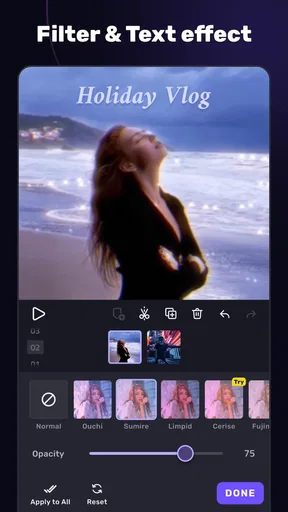
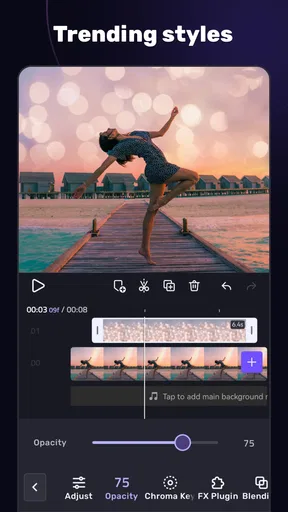
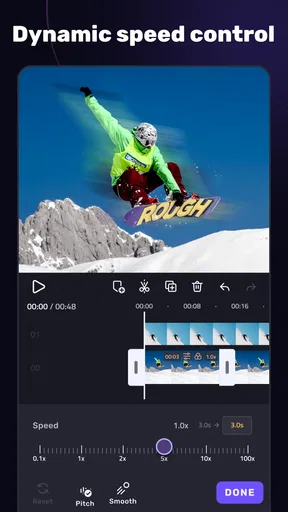
AI Video Editor - VivaCut offers a range of powerful features, including multi-layer editing, chroma key support for green screen effects, and an intuitive timeline for precise video cutting. It also boasts AI-driven tools for automatic scene detection, seamless transitions, and various filters to enhance video quality. These features make it suitable for both beginners and experienced editors.
Is AI Video Editor - VivaCut free to use?
VivaCut offers a free version with basic editing tools, but more advanced features and effects require a subscription. The premium version unlocks additional capabilities such as 4K video export, no watermarks, and access to an expansive library of effects and transitions. Pricing can vary, so check the app store for the latest subscription details.
What platforms is AI Video Editor - VivaCut available on?
AI Video Editor - VivaCut is available for both Android and iOS devices. It can be downloaded from the Google Play Store and the Apple App Store. The app is optimized for mobile devices, ensuring smooth performance and accessibility for users on the go, making it a versatile tool for video editing enthusiasts.
Can AI Video Editor - VivaCut handle 4K video editing?
Yes, VivaCut supports 4K video editing, allowing users to work with high-resolution footage. This capability is particularly beneficial for content creators who aim to produce professional-quality videos. However, 4K export and some high-end editing features are typically part of the premium subscription package.
Does AI Video Editor - VivaCut support social media sharing?
VivaCut includes built-in options for sharing your edited videos directly to popular social media platforms like Instagram, YouTube, and TikTok. The app’s export settings ensure your videos are optimized for these platforms, making it easier to maintain quality and format consistency when uploading your content.
